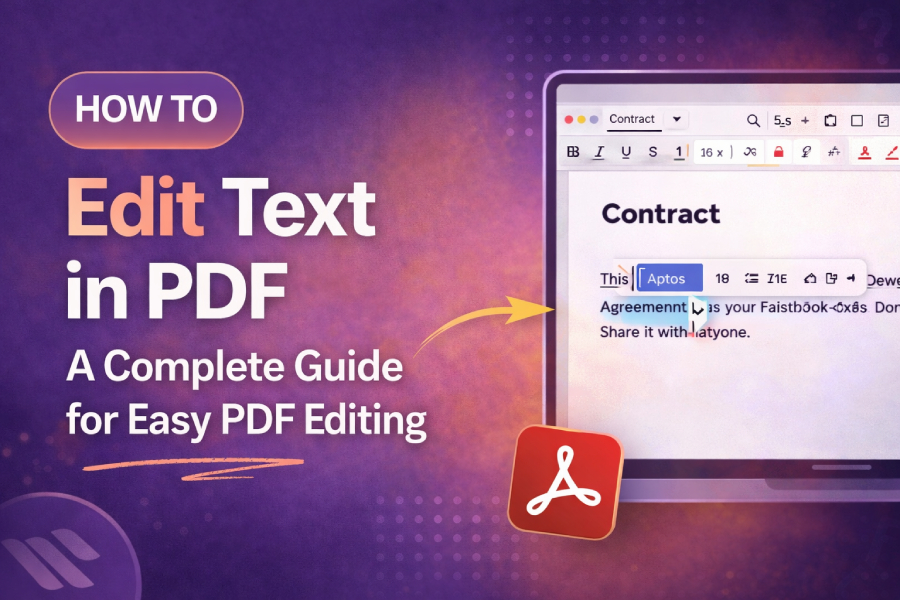
Editing text in a PDF might seem complicated, but with the right tools, it’s simple and efficient. Whether you’re updating a document for professional use or personal projects, knowing how to edit PDFs is a valuable skill.
This guide will walk you through the process of text editing in PDFs, ensuring you can make precise changes with ease.
What You Need to Know Before Editing PDF Text
Before you begin editing a PDF, it’s important to understand that PDFs are not designed for easy text modification. They are more like a final version of a document, which is why editing tools are required to unlock the content for changes.
The process can vary depending on the software you use, but most tools provide an easy-to-use interface for modifying text. By following the right steps, you can efficiently edit your PDF files.
How to Edit Text in PDF Using Online Tools
One of the easiest ways to edit a PDF is by using online PDF editors. These tools allow you to upload your PDF and directly make changes to the text without needing to download any software. Popular platforms like Smallpdf and PDF.net offer intuitive interfaces that let you edit PDF text quickly. By simply selecting the text tool, you can change, add, or delete text within your document.
For a streamlined editing process, you can use free weird text generator to add some unique text effects to your documents. This tool can transform regular text into something more creative and engaging, adding an extra flair to your PDF.
Using Adobe Acrobat for Text Editing
Adobe Acrobat is one of the most popular and powerful tools for editing PDFs. With Adobe Acrobat Pro, you can directly click on the text you wish to edit. This gives you complete control over font, size, and formatting.
While Adobe Acrobat is a paid tool, it offers a full suite of features that makes it worth the investment for professionals. You can easily replace text, reflow text boxes, and even add images or annotations to your document.
For more advanced document modifications, the how to make weird text article can help you understand how text modifications can create eye-catching designs that suit different PDF editing tasks.
Editing Text on a Mac or Windows
Both Mac and Windows offer native options to edit PDFs. On a Mac, you can use Preview, which provides basic PDF text editing tools. You can highlight text, add notes, and use markup tools to change certain elements in the document.
For more comprehensive editing, you’ll need third-party software like Adobe Acrobat or PDF Expert. Windows, on the other hand, has multiple options, such as using Microsoft Word to convert PDFs into editable text formats and then editing them.
Using online editors is also an option for those on both platforms, as tools like PDF.net offer cross-platform compatibility. This ensures you can work on your PDF document whether you’re on a Mac or Windows PC.
What to Do If Text Is Not Editable
Sometimes, the text in a PDF is embedded in an image or protected by restrictions, making it impossible to edit directly. In such cases, you can use optical character recognition (OCR) technology to convert the document into editable text.
Many PDF editors, including Smallpdf and Adobe Acrobat, include built-in OCR features that allow you to extract and edit text from scanned documents. Once the text is extracted, you can easily make changes to it as needed.
Additionally, if you’re trying to get rid of unwanted text or overlay elements, tools like how to add squiggly line over n can assist in adding decorative symbols or altering specific characters.
Best Practices for Editing PDFs
When editing PDFs, it’s crucial to preserve the original layout’s integrity. Always save a copy of the original document before making edits, especially if you’re making extensive changes. This way, you’ll have a backup in case anything goes wrong. Furthermore, if you plan to share the edited document, consider using a PDF compressor to reduce its file size without compromising quality.
By following these best practices, you can efficiently edit your PDF documents while keeping them professional and well-organized. Tools like Adobe Acrobat and free online editors make it simple to edit text and other elements quickly and easily.
Conclusion
Editing text in a PDF doesn’t have to be challenging. Whether you’re using free online tools or professional PDF software, there are plenty of options to choose from. It’s important to understand the limitations of your PDF file and select the appropriate tool for the job.
With the right approach, you can make necessary changes to your document with precision and ease. If you’re looking to add something special, try out tools that allow you to make your text look unique and fun, such as the free weird text generator.
By mastering PDF editing, you can increase your productivity and make document changes with confidence.
FAQs
How can I edit text in a PDF file?
To edit text in a PDF, use online tools like Smallpdf or PDF.net, or professional software like Adobe Acrobat. Simply upload your document, select the text tool, and make your changes.
Are there free tools to edit text in a PDF?
Yes, online PDF editors like Smallpdf and PDF.net offer free tools for basic text editing. These tools allow you to change, add, or delete text in your PDFs without needing a subscription.
Can I edit scanned PDF documents?
Yes, you can edit scanned PDFs using OCR (Optical Character Recognition) technology. Tools like Adobe Acrobat and Smallpdf can convert scanned images into editable text, allowing you to make changes easily.
How do I edit text in a PDF on Mac?
To edit text in a PDF on a Mac, use Preview for basic edits. For advanced editing, you can use Adobe Acrobat or other PDF editing software that offers text modification tools.
Is it possible to add images while editing a PDF?
Yes, most PDF editors allow you to add images to your documents. Adobe Acrobat and online editors like PDF.net provide options to insert images, logos, or other visual elements to your PDFs.
How do I change the font in a PDF?
To change the font in a PDF, use a PDF editing tool like Adobe Acrobat or Smallpdf. These tools allow you to select text and adjust the font, size, color, and style.
Can I edit a PDF on my mobile device?
Yes, you can edit PDFs on mobile devices using apps like Adobe Acrobat or online tools like PDF.net. These apps allow you to modify text and images directly from your smartphone or tablet.
What should I do if the text in my PDF isn’t editable?
If text in your PDF isn’t editable, it may be embedded in an image or protected. Use OCR technology available in tools like Adobe Acrobat or Smallpdf to extract and edit the text.
How do I protect a PDF after editing it?
After editing a PDF, you can protect it by adding password encryption using tools like Adobe Acrobat. This ensures that only authorized users can view or modify the document.
Can I convert a PDF to an editable Word document?
Yes, you can convert PDFs into editable Word documents using tools like Adobe Acrobat or online converters like Smallpdf. Once converted, you can make text changes easily before saving it as a new PDF.