
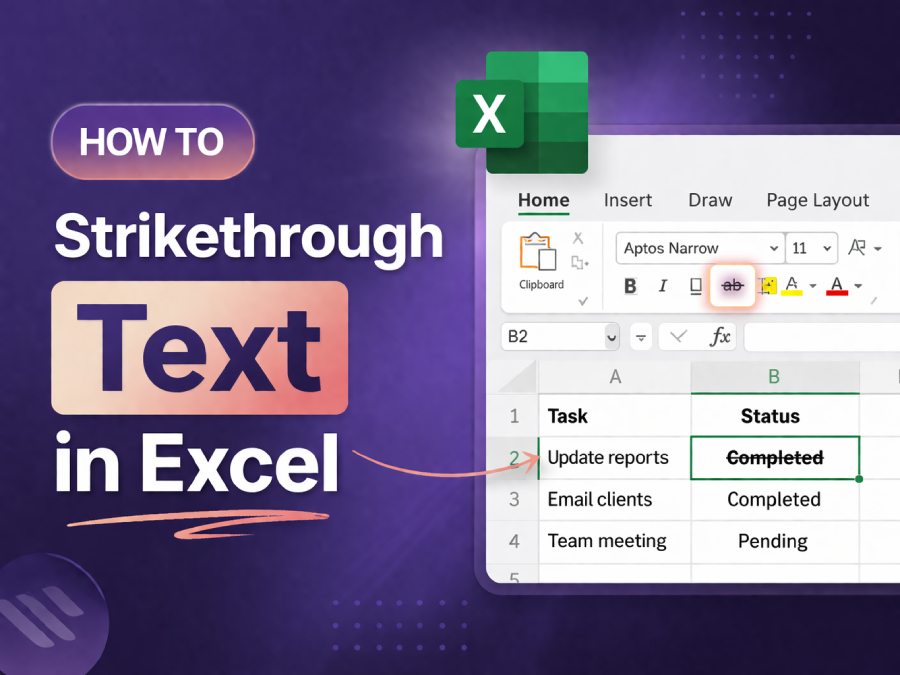
When working with Excel, applying a strikethrough effect can be an excellent way to mark completed tasks or outdated data. This formatting tool is often used to visually indicate that specific information is no longer relevant.
In this guide, we’ll show you several methods to strikethrough text in Excel, from simple shortcuts to more advanced techniques.
What Is Strikethrough in Excel?
Strikethrough in Excel is a text formatting feature that draws a line through the middle of your text. It’s useful for tasks like marking completed items in to-do lists or identifying outdated information in a dataset. This formatting can be applied to individual cells, portions of text, or entire columns.
The strikethrough option is particularly valuable when you need to keep the text visible but indicate that it’s no longer relevant. For instance, in project management, you might use strikethrough to mark completed tasks. Additionally, using strikethrough in Excel helps maintain a clear visual distinction between current and outdated information.
Using the Ctrl + 5 Shortcut to Apply Strikethrough
One of the quickest ways to apply a strikethrough in Excel is by using the keyboard shortcut Ctrl + 5. This method works instantly and is highly efficient, especially when you’re working with multiple cells. After selecting the cells you want to apply the strikethrough to, simply press Ctrl + 5, and the line will appear.
This shortcut works for both Windows and macOS users and is often the go-to option for those looking for a fast solution. It’s important to note that Ctrl + 5 can toggle the strikethrough effect on and off, so you can easily remove it by pressing the same combination again. This makes it a versatile tool for Excel users.
If you want to apply the strikethrough to just part of the text within a cell, you can follow the steps outlined in the free weird text generator to manipulate specific parts of the text.
How to Use the Format Cells Dialog for Strikethrough
The Format Cells dialog is another method to apply strikethrough in Excel. To use this option, select the cell or range of cells that you want to format. Then, right-click on the selection and choose Format Cells, or press Ctrl + 1 to open the dialog box.
In the Format Cells window, navigate to the Font tab, where you will find the option for strikethrough. Simply check the box next to Strikethrough and click OK to apply the formatting. This method is especially useful if you need to acceright-click the selection and choose Format Cells, or press Ctrl+1ss other font settings simultaneously.
The Format Cells method is ideal for users who prefer a more detailed approach to text formatting, allowing you to adjust other aspects of your cell’s appearance, such as font size and style.
Strikethrough with Conditional Formatting
You can automate the application of strikethrough using Conditional Formatting. This method is particularly useful for dynamically marking data, such as marking tasks as completed based on specific conditions. For example, if a cell’s value meets a certain threshold (e.g., “Completed”), you can set up a rule that automatically applies strikethrough.
To use conditional formatting for strikethrough, first, select the range of cells where you want to apply the formatting. Then, go to the Home tab, click Conditional Formatting, and choose New Rule. In the rule creation window, select Format only cells that contain and set your criteria. Finally, click Format, choose Font, and check the Strikethrough box.
This method is incredibly powerful, especially when dealing with large datasets that require consistent formatting. If you’re interested in exploring more Excel formatting techniques, consider reading more on how to make distorted text to enhance your Excel presentations.
Adding Strikethrough Using the Quick Access Toolbar
If you’re using strikethrough frequently, adding it to the Quick Access Toolbar (QAT) can save you time. The QAT is located above the ribbon in Excel, allowing you to access tools without navigating through menus. To add strikethrough to the QAT, follow these steps:
- Right-click on the strikethrough button in the Format Cells dialog.
- Select Add to Quick Access Toolbar.
- From now on, you can apply strikethrough by simply clicking the button in the QAT.
This method is perfect for users who need constant access to the strikethrough option but want to avoid using keyboard shortcuts or opening the Format Cells dialog each time.
Applying Strikethrough to Partial Text in a Cell
In Excel, you can also apply strikethrough to only part of the text in a cell, not just the entire content. To do this, double-click the cell to enter Edit Mode, then select the portion of text you want to strike through. After selecting the text, press Ctrl + 5 or open the Format Cells dialog to choose the strikethrough option.
This feature is helpful when you’re working with cells containing multiple pieces of information, such as descriptions or notes. It allows you to cross out certain parts without affecting the rest of the cell’s content.
To get more information about text effects in Excel, you can refer to articles on how to add a squiggly line or create unique text styles in your worksheet.
Strikethrough with Checkboxes
Strikethrough can also be applied automatically in Excel using checkboxes. By inserting a checkbox form control in your spreadsheet, you can link it to a cell’s value. When the checkbox is checked, it applies strikethrough to the corresponding cell’s text.
This method is especially useful for creating interactive to-do lists or task trackers within Excel. The strikethrough is applied automatically when you check the box, providing a seamless experience for tracking progress. For more advanced tips on automating text formatting in Excel, consider exploring how to make weird text.
Strikethrough in Excel for Web Users
For Excel or Web users, applying strikethrough is just as simple as in the desktop version. The process involves selecting the text or cell, opening the Format Cells dialog, and selecting the strikethrough option. If you’re using Excel for Web regularly, you can quickly incorporate this feature into your workflow to enhance your spreadsheets.
Excel for Web may not have all the features of the desktop version, but it still supports most essential formatting options. The strikethrough function is fully compatible, ensuring seamless work across platforms.
Conclusion
In Excel, strikethrough is a versatile formatting tool that helps you keep your data organized and visually appealing. Whether you use the Ctrl + 5 shortcut, the Format Cells dialog, or advanced features like conditional formatting, there are many ways to apply strikethrough to suit your needs. By understanding these methods, you can increase your productivity and improve your Excel workflow.
By automating tasks with check boxes or using conditional formatting, you can create dynamic spreadsheets that require minimal manual intervention. Excel is a powerful tool, and mastering strikethrough functionality will help you work more efficiently.
FAQs
How do I apply strikethrough in Excel?
To apply strikethrough in Excel, select the text or cell, then press Ctrl+5 on your keyboard. Alternatively, right-click the cell, choose Format Cells, go to the Font tab, and check Strikethrough.
Can I apply strikethrough to part of a cell in Excel?
Yes, you can apply strikethrough to specific parts of text within a cell. Enter Edit Mode by double-clicking the cell, highlight the desired text, and press Ctrl + 5 to apply the strikethrough.
How do I remove strikethrough in Excel?
To remove the strikethrough, simply select the text or cell with the strikethrough applied and press Ctrl + 5 again. Alternatively, open Format Cells (Ctrl+1), uncheck the Strikethrough option, then click OK.
Can I use conditional formatting for strikethrough in Excel?
Yes, you can apply strikethrough automatically using conditional formatting. Create a rule that triggers the strikethrough when specific conditions are met, such as when a cell’s value changes to “Completed” or meets other criteria.
How do I add strikethrough to my Quick Access Toolbar?
To add strikethrough to your Quick Access Toolbar in Excel, right-click on the Strikethrough button in the Format Cells dialog and select Add to Quick Access Toolbar. This provides faster access for repeated use.
What is the fastest way to strikethrough text in Excel?
The fastest way to apply strikethrough is by using the Ctrl + 5 shortcut. It allows you to toggle strikethrough on or off without navigating through menus, making it ideal for quick formatting.
Can I apply strikethrough to checkboxes in Excel?
Yes, you can link a checkbox to a cell and apply strikethrough automatically when the checkbox is checked. This is useful for creating to-do lists or task trackers in Excel with visual progress indicators.
How do I apply strikethrough in Excel for the web?
To apply strikethrough in Excel for the web, select the cell or text, click Format, and then choose Strikethrough from the Font options. The process is similar to the desktop version and works across platforms.
Can I apply strikethrough to multiple cells at once in Excel?
Yes, you can select multiple cells and apply strikethrough simultaneously. Use Ctrl + 5 after selecting the range, or use the Format Cells dialog to apply the strikethrough effect to all selected cells.
Is there a way to automate strikethrough in Excel?
Yes, you can automate strikethrough in Excel using VBA (Visual Basic for Applications). You can create macros to apply strikethrough based on specific actions, like checking a box or changing a cell value, improving workflow efficiency.